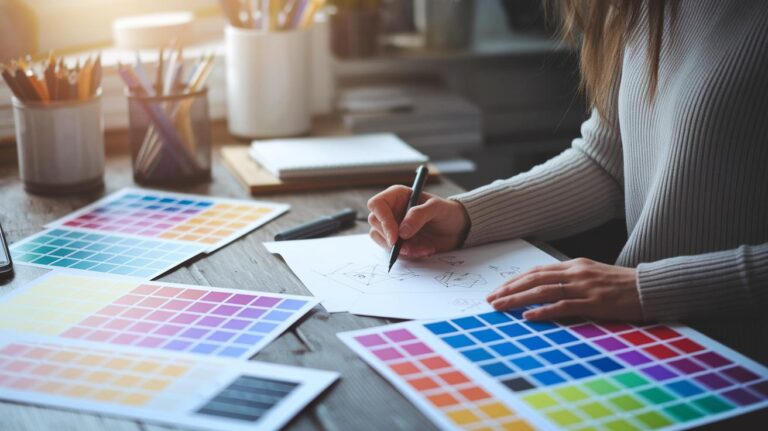
Have you ever wondered why some tech bulletins capture your attention while others slip by unnoticed? The secret is in the design. When you use an eye-catching headline paired with a clean, simple layout, even the trickiest IT updates transform into lively, appealing messages.
In this guide, we’re sharing five key design tips that turn everyday tech updates into engaging stories. Get ready to spark your creativity and change your tech updates into friendly, inviting conversations that draw readers in.
5 tech bulletin template design tips: Spark Creativity
Tech bulletins need to catch the eye quickly and lead readers to what comes next. Think of the bulletin as a friendly story that builds interest with every line. A bright headline paired with a simple single-column layout turns detailed info into an easy chat. For instance, a headline like "Breaking News: Your IT Just Got Smarter" sparks curiosity and invites a closer look.
Keeping things readable is key when you craft these bulletins. Use plenty of empty space and clear headings so important updates pop. Aim for margins around 15 to 20 pixels to give the text room to breathe. The language should feel both easy and engaging, like saying, "Summary: Streamlined processes boost productivity in minutes." This mix of clear storytelling and direct calls to action makes the bulletin both memorable and useful.
- Dynamic Bulletin Headline – Start strong with a headline that tells the main story. A headline such as "Breaking News: Your IT Just Got Smarter" sets the vibe right away.
- Quick Executive Summary – Give your readers a brief snapshot of the key points. For example: "Summary: Streamlined processes boost efficiency in minutes."
- Balanced Layout with Whitespace and Headings – Keep the design clean by using ample spacing, at least 15–20 pixels around the text, to guide the reader.
- Clear Next-Step Indicators (CTAs) – Use direct prompts like "Click here to explore," so readers know exactly what to do next.
- Subtle Branded Visuals – Add small visuals like a tiny logo that takes up less than 25% of the space and calmly reinforces your brand without overwhelming the message.
Keep these tips in mind to create bulletins that are easy on the eyes and simple to read, making tech updates feel like a friendly conversation.
Structuring Tech Bulletin Template Layout with Visual Hierarchy

Visual hierarchy is about leading the reader's eye to the most important updates right away. Imagine you design your bulletin like a friendly map where headlines pop with size and contrast. For instance, you can use a bold, larger font for the main update while keeping the extra details in a softer style. This way, even a quick glance shows what matters most.
It also helps to organize related announcements into distinct sections. Picture each section as its own mini-story complete with a header, clear content, and helpful visual hints. Using plenty of whitespace (try a 1.5 line-height) between these sections gives the layout a neat, easy-to-read look. This design is much like clear signs in a store, directing you smoothly from one area to the next.
Finally, think about customizing your headers and footers so your bulletin has a consistent feel and allows for quick navigation between parts. By grouping related information and balancing the space, you ensure that your bulletin looks great on both desktops and mobile devices. This means every reader, no matter where they are, can easily find, read, and act on the key updates.
Color Schemes and Typography in Tech Bulletin Templates
When you design a tech bulletin, start with a core color palette. Choose one or two eye-catching colors paired with neutral grays. Think of using a bold orange paired with a calm, slate gray, like a dashboard that gently pops with energy yet remains soothing. Keeping this balanced makes your bulletin easy on the eyes. Stick to decorative fonts just in headings to keep distractions low, and limit images to under 25% of your layout, so nothing feels too busy.
For your text, go with reliable, email-friendly fonts such as Arial or Helvetica. These fonts work well on all devices. Set up your text with a clear scale: maybe use 24px for H1, 18px for H2, and 14px for the body text. This simple setup guides your reader naturally through the content, much like putting together your favorite gadget piece by piece.
Tools and Resources for Tech Bulletin Template Design

Canva and Adobe Express are fantastic if you need a quick drag-and-drop design solution. They come loaded with icon libraries, so even if you’re new to design, you can create a sleek tech bulletin in no time.
If you're teaming up with colleagues, Google Docs and Slides make the whole process flow smoothly. Real-time edits and built-in feedback features let everyone pitch in easily, ideal when you’re working with a tight budget and need fast revisions.
Maybe you prefer starting with ready-made visuals. Envato Elements offers a variety of graphic assets and mockup files that can be effortlessly added to your design. And if high-resolution mockup previews help you fine-tune just the way you like it, Placeit is a handy resource.
Lastly, when deciding between using a code editor or a template library, think about your team’s comfort level. Code-based editors give you deep customization but might need more technical know-how, while template libraries keep things simple and save you loads of time.
Step-by-Step Tech Bulletin Template Design and Testing Process
Step 1: Define Your Audience
Start by getting to know your readers. Break down your audience into groups so you can adjust your language, visuals, and update schedule. Think of it like mapping a custom route for each reader, tech fans might appreciate more details, while others prefer a simple explanation.
Step 2: Select Your Design Tool
Choose a design tool that fits both your team’s budget and skill level. Look at the costs, features, and output types (like HTML, PDF, or image files). A drag-and-drop editor might speed things up, while a code-based option lets you dig deeper into customization. And remember to check for dark-mode support so your updates are accessible to everyone.
Step 3: Customize Layout and Branding
Next, adjust your template to match your brand. Set the right dimensions, and design headers and footers in line with your company’s style. Pick color accents that echo your brand identity. The layout should be neat with plenty of space, much like a clear dashboard that instantly shows what’s important.
Step 4: Insert Compelling Content and Visuals
Now, add short and direct text paired with top-notch images that cover less than a quarter of your space. Make sure you include clear calls-to-action so readers know what to do next. Picture a sharp security alert paired with a crisp image that grabs attention without overcrowding your message.
Step 5: Test Responsiveness and Accessibility
Before finishing, run tests in different email clients like Outlook and Gmail. Make sure your design looks great on screens big and small, and do a quick check for accessibility. This way, no matter the device or ability, everyone can enjoy your updates.
Step 6: Analyze Metrics and Iterate
Lastly, track how your bulletin performs by looking at click-through rates and gathering feedback. Use A/B testing to fine-tune your template over time. Tweak and adjust until you find the mix that best drives engagement and keeps your message clear.
Final Words
In the action of creating dynamic and responsive tech bulletin layouts, the blog post covers essential design principles, from dynamic headlines and executive summaries to balanced layouts and clear CTAs. We explored visual hierarchy, strategic use of color and typography, and robust testing processes. Throughout the post, tech bulletin template design tips were key to ensuring clear, engaging communication. The insights make it easier to craft bulletins that not only inform but also captivate readers. Embrace these ideas, experiment with your layouts, and move forward with confidence.
FAQ
Frequently Asked Questions
Q: What free tech bulletin design tips and downloadable templates are available?
A: The free tech bulletin design tips and downloadable templates offer clear guidelines for balanced layouts, actionable call-to-actions, and engaging visuals, making it easy to create user-friendly tech bulletins.
Q: How can I access free editable newsletter templates in Word?
A: Free editable newsletter templates in Word provide a straightforward, customizable format that lets you transform basic content into clean, professional newsletters with clear, readable design elements.
Q: How does the Canva newsletter template inspire creative designs?
A: The Canva newsletter template inspires creative designs by offering an intuitive drag-and-drop interface, customizable layouts, and dynamic visuals that help transform your tech updates into engaging content.
Q: What are some effective newsletter design ideas and printable templates available?
A: Effective newsletter design ideas and printable templates focus on ample white space, coherent branding, and strategic placement of call-to-actions, ensuring your message is both appealing and easy to follow.
Q: How do platforms like Canva, Mailchimp, Freepik, Behance, HubSpot, and Dribbble assist in newsletter design?
A: These platforms provide a wealth of design resources and community insights—from creative templates to drag-and-drop tools—empowering you to craft visually appealing and on-brand newsletters quickly.